3 T — Transferable
Transferability is the ability for anyone to open the file, view and run the code without conversion or alteration. It covers the FAIR principle of interoperability, meaning that anyone can open and use your code, and extends it so that the code also runs on different computers and operating systems.
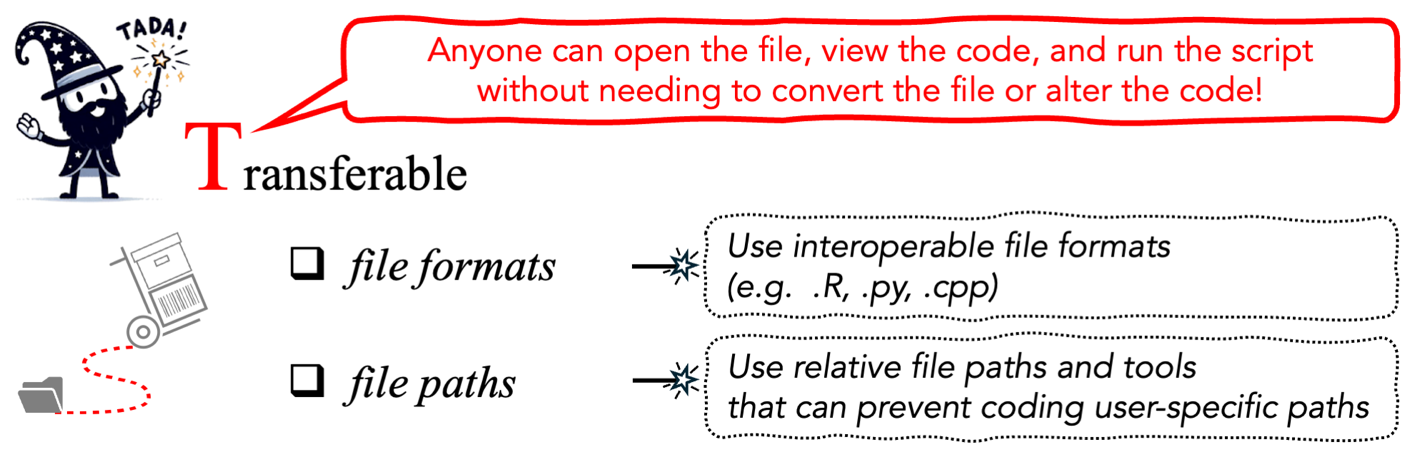
Figure 3 from Ivimey-Cook et al.
Transferability has two requirements, and you need both.
- The code is saved in a file type any text editor or IDE can open.
- The code contains no paths specific to your machine.
3.1 Save code in an interoperable file type
Save code with an extension that matches the language: .R, .py,
.cpp, or the equivalent standard format. These can be viewed, edited and
saved by any text editor or IDE (RStudio, VS Code, PyCharm) on any system.
Do not share code inside .PDF or .docx files. A PDF can be viewed, but
it cannot be opened and edited in an IDE without extra libraries or software, or
without first converting it to another file type.
The bigger problem with PDFs and Word documents is copying code out of them. Copy-pasting can change characters (apostrophes are the classic example), alter white space, or bring in line numbers and headers. The code looks correct, so the errors can be hard to spot and slow to fix.
A note on .txt. A plain text file avoids those copy-and-paste problems, but
it has another. Many IDEs infer the language from the extension, so without
.R an IDE may not recognise the file as R and may refuse to run it until it
is re-saved. Use the language’s own extension.
If your language does not use a standard file type, apply this test: can
the resulting file be opened by a text editor? SPSS syntax .sps files, for
example, can be read in a text editor, so they pass.
3.2 Avoid local and user-specific file paths
Local or absolute file paths are one of the most common reasons code that ran for its author fails for everyone else (SORTEE Stage 5; Pick et al. 2026).
File paths must not depend on your local environment or directory structure, so use relative paths rather than local or user-specific ones. Put data, code and all necessary materials in a single project directory, since a relative path has to be relative to something.
Before
This sets a working directory that exists on one computer, with one operating system, belonging to one person. Everyone else gets an error before the data have loaded.
How to do it
There are several options, and you can combine them.
R
Use an RStudio project. File → New Project creates a .Rproj file. When you open
the project, RStudio sets the working directory to the project folder, so you
never need setwd().
See https://docs.posit.co/ide/user/ide/get-started/.
Use the here package (Müller & Bryan 2020). here() builds paths relative
to the project directory, whatever the operating system:
library(here)

raw     <- read.csv(here("data", "raw", "caterpillars_2024.csv"))
clean   <- here("data", "processed", "caterpillars_clean.csv")
figure  <- here("output", "figures", "fig3_abundance.png")
Use both. We recommend RStudio projects and here together, because they
make code most transferable across operating systems (Ivimey-Cook et al. 2025).
Without an IDE, launching R from inside the project directory does much the same.
Avoid setwd(). It sets a path specific to your operating system and your user
account, and absolute paths like this will almost certainly cause errors when
other people run your code on other systems.
Python
Use pyprojroot (Chen 2023), the Python counterpart to here, which builds
file paths relative to the project directory regardless of operating system:
from pyprojroot import here
import pandas as pd

raw = pd.read_csv(here("data/raw/caterpillars_2024.csv"))
Work inside the project directory. If you run Python from within the project folder, you do not need local file paths.
Avoid os.chdir(), the Python equivalent of setwd(). It has the same problem:
it hard-codes a path that exists only on your machine.
Other IDEs
VS Code. Navigate to the project folder and open the folder rather than the individual file. This works like an RStudio project: the workspace root is the reference point for relative paths.
Standalone interpreters. Launching R or Python from within the project directory does the same thing. The working directory is the project, so every path in the code can be relative to it.
Any language. The principle is the same whatever the tool: put everything in one project directory and write every path relative to the top of it.
Whichever method you choose, say so in the documentation. Someone opening
your project needs to know they should open the .Rproj file, or activate a
virtual environment, before running anything. See
Documented.
3.3 Beyond TADA: environments and pipelines
We left the following out of TADA’s scope (Ivimey-Cook et al. 2025), but they are worth knowing about because they fix failures that relative paths cannot.
Dependency and environment managers, such as renv (Ushey & Wickham 2023) in R
and {conda} (conda contributors 2026) in Python, help make sure the same computational environment is
used each time a project is run, typically via a lockfile.
Containerisation, through Docker (Merkel 2014) and Apptainer, formerly called Singularity (Kurtzer et al. 2017; Apptainer n.d.), uses images that encapsulate a complete software environment, including all required programs and libraries. This makes the environment reproducible between systems and avoids the common “works on my computer” problem.
Workflow managers, such as Snakemake (Köster & Rahmann 2012) and Nextflow (Di Tommaso et al. 2017), specify the sequence of scripts or computational steps in a pipeline and their dependencies, so that each step runs in a defined and reproducible order.
TADA does not require any of these. If you already use them, they strengthen transferability, but relative paths and a good README get you most of the way on their own.
3.4 Checklist


Try doing all of these to make the dog happy.
Next: Available, on getting the code archived with a DOI.